

How SimBuster calling works
SimBuster lets you make supported phone calls through the app using an internet connection such as Wi-Fi or mobile data.The person you call does not need SimBuster. Supported calls can connect to ordinary mobile and landline phone numbers.
Outgoing calls use either an eligible Calling Plan or your SimBuster Call Credit at the rate shown for the destination.
A travel eSIM can provide the mobile-data connection used by SimBuster while you are abroad, but the eSIM data plan and the telephone call are separate services and are charged separately.
If you own a SimBuster phone number, incoming calls can be sent to the app. The incoming destination is managed from that number’s settings. Depending on the services you have configured, a number can route calls to the SimBuster app, another phone number, Receptionist or AI Assistant.
Related guides
Make a phone call
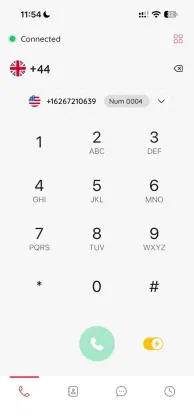
To call a supported mobile or landline number:- Open the SimBuster dialler.
- Select the destination country or enter the full phone number using its international country code.
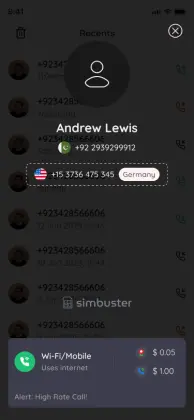
- Check the destination and current call rate shown in the app.
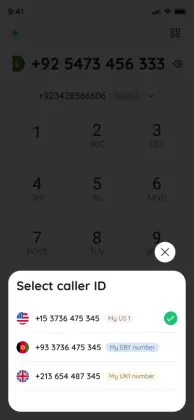
- Choose an eligible outgoing caller ID if a caller-ID selector is available for the call.
- Tap the call button.
- During the call, use mute, speaker, keypad or audio controls as needed.
- End the call when finished.
Your Call Credit or Calling Plan usage will update according to the rate or plan that applied to the call.
Before calling, make sure the destination is supported and you have enough Call Credit, or an active Calling Plan that covers the destination.
Call mobile and landline numbers
You can call supported ordinary mobile and landline numbers. The person receiving the call answers using their normal telephone service and does not need a SimBuster account.Rates can differ between mobile, landline and other number types in the same country. Always check the destination and rate shown in the app rather than assuming that every number in one country costs the same.
Dial international numbers correctly
For reliable international calling, use the full international phone-number format.Start with the country code, followed by the national number in the format expected for that destination. For example, the United Kingdom uses +44 and the United States and Canada use +1.
A domestic prefix such as a leading 0 may need to be removed when a number is written in international format. Using SimBuster’s country selector is the easiest way to reduce formatting mistakes.
If a call fails immediately, check the selected country and number format before assuming there is a network problem. A correctly formatted number can still be unavailable if the destination or number type is restricted.
Choose your outgoing caller ID
Where caller-ID selection is available, choose the eligible SimBuster number you want to present before placing the call.This is useful if you manage more than one business, local or second phone number in the same account and want the recipient to see the number relevant to that call.
Caller-ID availability can depend on the number, destination, account and network. The receiving carrier or device can also affect how the number is displayed.
If a number is not available to select as caller ID, check that the number is active and eligible for outgoing presentation.
Check the call rate before you call
Call prices vary by destination and number type. Check the rate displayed inside SimBuster before making a call.The pricing area can also help you compare standard pay-as-you-go rates with any Calling Plans available for the destination.
If a Calling Plan is active but does not cover the number or destination you are calling, the standard pay-as-you-go rate can apply instead. Standard Call Credit can also be used after a compatible plan allowance has been used up or the plan has expired.
Call Credit
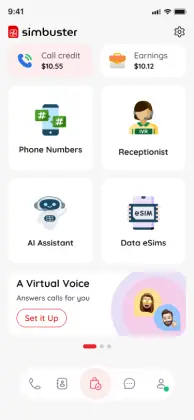
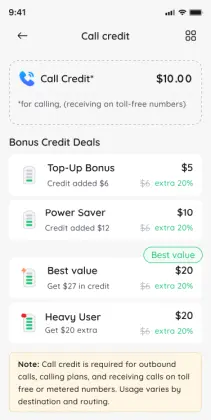
Call Credit is the balance used for ordinary outgoing calls, Calling Plans and other eligible calling usage in SimBuster.It is separate from the rental or purchase price of a phone number, SMS Credit and Speech Credit.
Your current Call Credit balance is shown in SimBuster. You can add more from the app using the available payment methods.
How outgoing calls are charged
When no compatible Calling Plan applies, supported outgoing calls use the standard rate for the destination. The applicable charge is taken from your Call Credit.Rates are shown in the app when checking pricing or before calling where available. If a destination is billed per minute, the billing rules shown by SimBuster apply to the call.
Incoming calls to a SimBuster number are different from outgoing calls. If you route an incoming call onward to another external telephone number, the forwarded leg can create separate chargeable usage.
Check the destination and routing before enabling external call forwarding.
Calling Plans
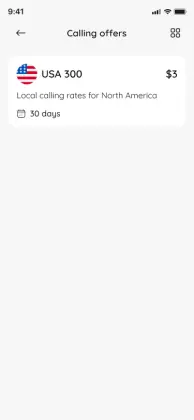
Calling Plans provide an allowance of calling minutes for selected destinations where a compatible plan is available.Plans are purchased using Call Credit and are separate from SMS Credit and Speech Credit.
A Calling Plan may require a compatible SimBuster number. The app shows the plans available to your account and destination.
To use a plan:
- Open the available Calling Plans.
- Choose the destination or plan you need.
- Check the included minutes, price and compatibility.
- Activate the plan using Call Credit.
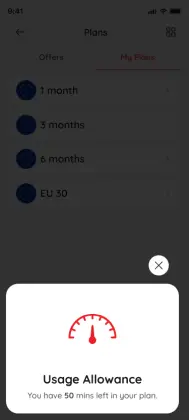
- Track remaining minutes and expiry in the app.
Current Calling Plans are designed around a 30-day validity period. The app shows the exact plan validity, remaining usage and expiry for the plan you select.
If no active compatible plan applies, supported calls can use the normal pay-as-you-go rate from your available Call Credit.
Calling Plan or pay as you go?
You do not need a Calling Plan for every supported call.If no compatible plan is active, SimBuster can use your Call Credit at the standard destination rate.
A Calling Plan can make sense when you expect to call the same supported destination regularly and the available plan gives better value for your expected usage.
Pay as you go is simpler for occasional calls or destinations where you do not need a bundle of minutes.
Always compare the current rate and plan shown in the app before deciding.
Call Credit, SMS Credit and Speech Credit
SimBuster uses separate balances for different services. They are not interchangeable.Call Credit
Used for ordinary outgoing calls, Calling Plans and other eligible calling usage.
SMS Credit
Used for supported outgoing SMS messages. SMS Credit is purchased for the relevant country and is covered in detail later on this page.
Speech Credit
Used to generate supported voice audio, such as Receptionist greetings, prompts and avatar speech. Speech Credit is not used for an ordinary phone call or SMS.
Detailed Speech Credit help belongs with Speech Credit, Receptionist and AI Assistant rather than ordinary calling.
Receive calls in the SimBuster app
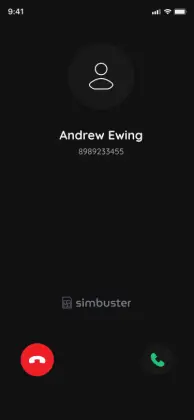
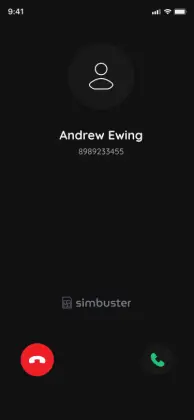
If an active SimBuster number is configured to send incoming calls to the app, SimBuster can alert you when that number is called.Answer the call from the incoming-call screen.
For reliable incoming call alerts:
- keep SimBuster installed and signed in;
- allow notifications;
- make sure your phone has a suitable internet connection;
- check Focus, Do Not Disturb and notification settings if the app does not alert you;
- check battery or background restrictions if your device is preventing apps from receiving timely notifications.
If the number is configured to send calls somewhere else - for example another phone number, Receptionist or AI Assistant - the app may not ring because the call is following the route you selected.
Change where incoming calls go from the relevant Phone Number settings rather than from the dialler.
Use the in-call controls
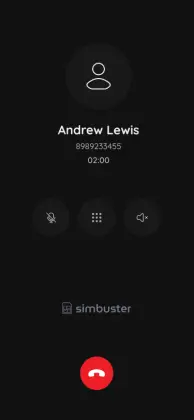
During a connected call, the available controls can include:- Mute - stops your microphone from sending audio until you unmute it.
- Speaker - sends call audio through the phone speaker where supported.
- Keypad - opens the DTMF keypad for automated menus and extensions.
- Audio - lets you choose an available handset, speaker, Bluetooth device or other connected audio route.
- End call - disconnects the current call.
Use the keypad for IVR menus and DTMF
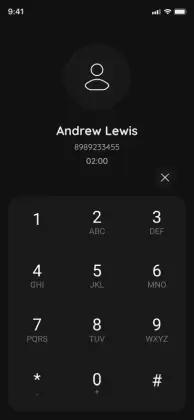
Open the keypad during a call when a business or automated phone system asks you to press a number, enter an extension or type a code.The keypad sends DTMF tones to supported destinations.
If an automated menu does not react to a keypress, make sure the call is connected and try the key again. DTMF behaviour can also depend on the destination network or remote telephone system.
Speaker, Bluetooth and audio output
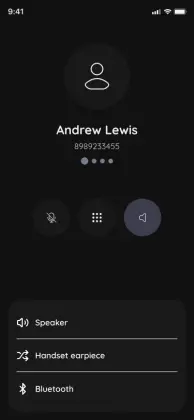
Your phone determines which audio devices are available during a call.Depending on the device, you may be able to use the earpiece, loudspeaker, wired headset, Bluetooth headset or another connected audio device.
If you cannot hear the call, first check the selected audio output and your device volume.
If the other person cannot hear you, check that your microphone is not muted and that SimBuster has microphone permission.
Call history and missed calls
Use the Calls or call-history area to review recent calling activity.Depending on the call, entries can show incoming, outgoing or missed calls and the number or contact involved.
A missed call means the incoming call was not answered in the app or by the route configured for that number.
If you expected the app to ring but it did not, check the phone number’s incoming route and your notification settings before calling back.
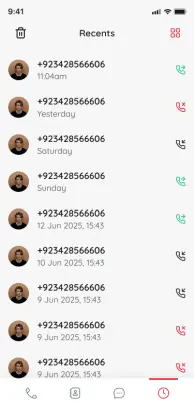
Call using Wi-Fi or mobile data
SimBuster calling needs a suitable internet connection.You can use:
- Wi-Fi;
- mobile data from your normal SIM; or
- data from a compatible travel eSIM.
The telephone call is billed by SimBuster according to the applicable Call Credit rate or Calling Plan. Your internet or mobile-data provider can separately charge for the data connection you use.
Stable Wi-Fi is often useful indoors. Mobile data is useful when you are away from Wi-Fi.
Weak signal, packet loss or moving between different networks can affect call setup and audio quality. Switching between Wi-Fi and mobile data during a live call can sometimes interrupt real-time audio.
Calling while travelling abroad
You can use SimBuster to make supported calls while travelling, provided the app has a suitable internet connection and the destination is available.You do not need to replace your normal SIM simply to use SimBuster calling.
If you use a travel eSIM for data, the eSIM can provide the internet connection that carries your SimBuster call. The travel data plan and the telephone call remain separate services.
Before relying on SimBuster while travelling, make a short test call and check your Call Credit, plan balance, app permissions and internet connection.
Restricted or unsupported call destinations
Not every telephone destination can be called. Availability can vary by country, network and number type.Premium-rate, satellite, emergency, short-code and other restricted destinations may be unavailable or handled differently.
If the app does not show a supported route or rate for a destination, do not assume the call will complete.
Do not rely on SimBuster as your only way to contact emergency services. Use the appropriate local emergency service and a telephone service designed to provide emergency access.
How SMS messaging works
SMS messaging is available with supported SimBuster phone numbers.A phone number must have the appropriate SMS capability before it can send or receive supported text messages.
Incoming SMS messages are shown privately in your SimBuster account rather than published on a public receive-SMS webpage.
Outgoing SMS uses SMS Credit, which is separate from Call Credit.
SMS availability varies by number type, country, sender, destination and network. A number that supports voice does not automatically support SMS, and a number that receives ordinary SMS is not guaranteed to work with every verification service.
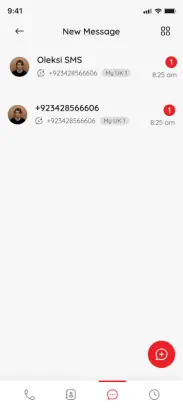
Check whether your number supports SMS
Check SMS capability before buying or using a phone number for messaging.Depending on the number, SimBuster may show voice-only service, incoming SMS support, outgoing SMS support or both sending and receiving capability.
If SMS is important for your use case, choose a number that explicitly shows the SMS capability you need. Do not buy a voice-only number expecting SMS to be added later.
SMS support for a phone number is separate from whether a third-party app or website accepts that number for verification.
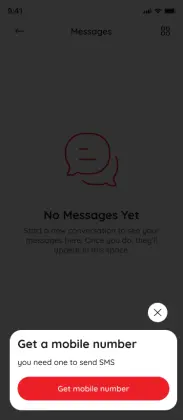
Receive an SMS
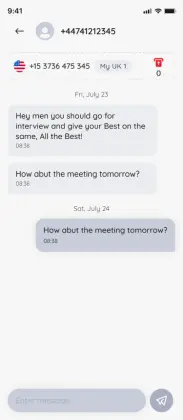
When a supported SMS is sent to an active SimBuster number, the message appears in the app after it is delivered through the relevant networks.To read a message:
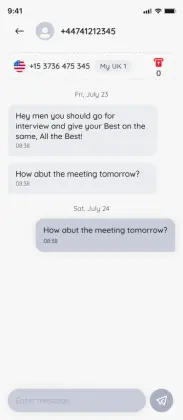
- Open the Messaging or SMS area.
- Select the relevant SimBuster number or conversation if you manage more than one number.
- Open the conversation to read the message.
- Keep the number active if you expect follow-up messages, login codes or account-recovery texts later.
Incoming SMS delivery can be affected by the sender, sending network, international routes, receiving network and filtering outside SimBuster. A delay does not always mean the number is inactive.
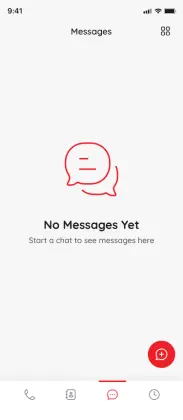
Send an SMS
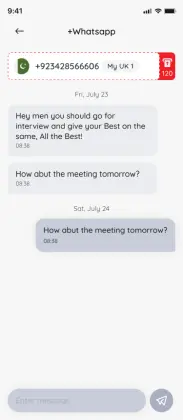
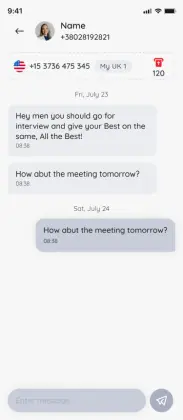
To send an SMS from a supported SimBuster number:- Open Messaging or SMS.
- Start a new message or open an existing conversation.
- Choose the SimBuster number you want to send from if you have more than one eligible number.
- Enter the recipient using the correct country and phone-number format.
- Type your message.
- Check that you have SMS Credit for the relevant country.
- Tap Send.
The recipient does not need SimBuster to receive a normal supported SMS.
Delivery still depends on the destination network, number type and route.
Choose the number you send SMS from
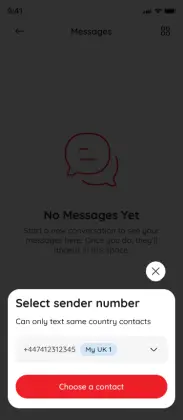
If you manage several SMS-enabled SimBuster numbers, choose the correct sending number before sending a message.This helps keep personal, business and country-specific conversations separated.
Only eligible numbers will be available for outgoing SMS. If a number is missing from the sender list, check that it is active and that its capabilities include outgoing SMS.
SMS Credit
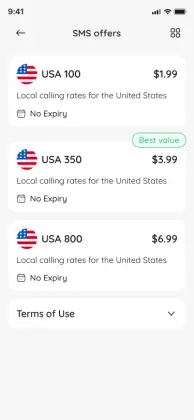
SMS Credit is used to send supported SMS messages. It is separate from Call Credit and Speech Credit.SMS Credit is purchased as an in-app purchase through the Apple App Store or Google Play.
SMS Credit is country-based rather than locked to one individual SimBuster phone number. If you have more than one eligible number for the same country, the applicable SMS Credit can be used across supported numbers for that country.
SMS Credits do not expire. The app shows your available balance and the country it applies to.
To buy SMS Credit:
- Open the SMS Credit or Plans area.
- Choose the country where you want to send SMS.
- Select an available SMS Credit package.
- Complete the in-app purchase through Apple or Google.
- Return to Messaging and send from an eligible number.
OTP and verification codes
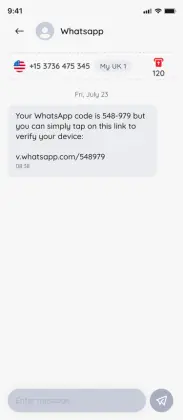
Supported SimBuster numbers can receive ordinary SMS and some one-time passwords or verification codes.However, the website, bank, app or platform sending the code decides which number types, countries and number ranges it accepts.
This means an SMS-enabled SimBuster number can work normally for ordinary text messages but still be rejected by a particular third-party verification system. SimBuster cannot guarantee compatibility with every app, website, bank, social network or verification provider.
If you want a number for sign-ups or account verification:
- choose a number that explicitly supports incoming SMS;
- enter the number with the correct country code;
- keep the number active if the service may send future login or recovery codes; and
- check the third party’s own rules if it says virtual or VoIP numbers are not accepted.
For financial, government, healthcare, cryptocurrency or other high-value accounts, use the security method recommended by that service. If it recommends an authenticator app, passkey or hardware-based security method, do not rely on SMS alone.
Keep a verification number active
Do not let a SimBuster phone number expire while it is still connected to an account you need.A third-party service may send another verification code weeks or months later for login, password recovery, two-factor authentication or a security check.
If a number expires and is eventually reassigned, you may lose access to future messages sent to that number.
Before releasing a number or allowing it to expire, remove it from any important third-party accounts and replace it with another contact or recovery method.
SMS privacy and public receive-SMS sites
A purchased SimBuster phone number is assigned to your account while it remains active. Incoming messages are shown inside SimBuster rather than published on a public receive-SMS webpage.This can help you keep your primary mobile number separate when communicating with new contacts, marketplaces, sign-up services or other supported uses.
A SimBuster number does not make you anonymous and does not override another service’s terms, identity checks or anti-abuse controls.
SimBuster must not be used for fraud, impersonation, harassment, evading platform restrictions or other unlawful or abusive activity.
SMS limits, delivery and unsupported message types
SMS delivery depends on the sending number, receiving number, destination country, carrier route and any filtering used by the networks involved.International SMS and verification traffic can be handled differently from ordinary person-to-person messaging.
Keep these points in mind:
- use the full international number format when required;
- make sure the selected SimBuster number supports outgoing SMS;
- make sure you have SMS Credit for the relevant country;
- do not assume every short code, premium service, alphanumeric sender or verification provider is supported;
- a sent state means the message has left SimBuster, but final delivery can still depend on downstream networks; and
- this Help Center section covers SMS text messaging. Do not assume MMS, RCS or another messaging format is available unless SimBuster specifically shows support for it.
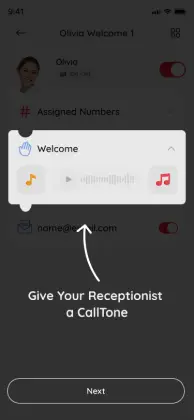
What are CallTones?
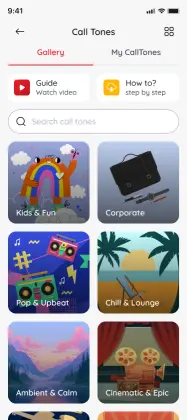
CallTones are short music, voice or audio clips that personalise the way supported calls begin or end.They are different from a Receptionist greeting. A CallTone adds a short sound or branded audio moment, while a Receptionist greeting gives the caller instructions such as “Press 1 for Sales”.
CallTones can be used with supported SimBuster numbers and call flows. You can choose from available audio and, where supported, use your own licensed audio.
A CallTone can be used before or after the relevant greeting or call stage depending on the supported setup. Current custom CallTones support short clips of up to 20 seconds.
Add, change or remove a CallTone
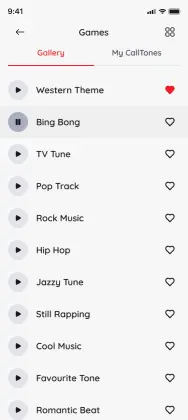
Open the CallTone or relevant number/call-flow settings and choose the audio you want to use.Preview the selection where available and save it to the relevant number or flow.
Custom audio uploads are managed through the SimBuster website where supported. Only upload audio that you own or have permission or a valid licence to use.
You can later replace or disable a CallTone.
Can’t make a call
If a call will not start or fails quickly, check these items in order:- Internet - confirm Wi-Fi or mobile data is working.
- Number format - select the correct country and enter the full destination number.
- Destination - confirm SimBuster shows support or a rate for the number type you are calling.
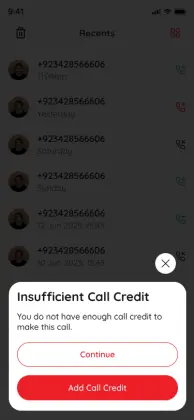
- Call Credit - make sure your balance is sufficient if no compatible plan covers the call.
- Calling Plan - confirm the plan is active, has remaining minutes and applies to this destination.
- App - make sure SimBuster is up to date and you are signed in.
- Microphone permission - check permission before placing another test call.
- Restricted number - premium, satellite, emergency, short-code or other restricted destinations may not be supported.
If the same supported destination repeatedly fails, note the number you called, destination country and approximate time before contacting support. That information helps identify the route involved.
Call connects but there is no audio
If the call timer starts but you cannot hear the other person, check your phone volume and selected audio output. Switch between the earpiece, speaker or Bluetooth if available.If the other person cannot hear you:
- unmute the microphone;
- check that SimBuster has microphone permission; and
- reconnect a Bluetooth device if the call has selected the wrong audio route.
If neither side has audio, end the call, confirm your internet connection is stable and try again.
For a persistent one-way or no-audio problem, note the destination, approximate time and internet network used before contacting support.
Poor call quality or dropped calls
Real-time voice is sensitive to weak internet connections, packet loss, latency and network changes.If audio breaks up, becomes delayed or the call drops:
- move to a stronger Wi-Fi or mobile-data signal;
- avoid switching between Wi-Fi and mobile data during the call if possible;
- pause heavy downloads, hotspot use or other traffic on a weak connection;
- try the same destination again using a different internet connection; and
- if only one destination is affected, the problem may be with that network or route rather than your device.
Caller ID is missing or looks wrong
First check which outgoing SimBuster number was selected before the call.If the correct number was selected, the way caller ID appears can still depend on the destination carrier, country rules and receiving device.
If the same issue happens repeatedly for a supported destination, note the SimBuster number used, called country, approximate time and what the recipient saw before contacting support.
SMS not received
If an expected SMS has not arrived:- Confirm the SimBuster number is active.
- Confirm that exact number supports incoming SMS.
- Check that the sender used the correct full phone number and country code.
- Refresh or reopen the message inbox and make sure you are viewing the correct SimBuster number.
- If it is a verification message, remember that the sender may reject virtual, VoIP, prepaid, international or previously used number ranges.
- Wait briefly and retry once; some carrier routes can delay messages.
- If ordinary SMS from several unrelated senders also fails, contact support with the receiving number, approximate time and sending network if known.
SMS will not send
If an outgoing SMS fails, check:- the selected SimBuster number supports outgoing SMS;
- the recipient number and country code are correct;
- you have enough SMS Credit for the relevant country;
- the destination and route are supported;
- the app has an internet connection and you are signed in; and
- the message is ordinary supported SMS content and not a destination or message type SimBuster does not support.
If the app displays a specific error, keep a screenshot of it before retrying or contacting support.
OTP or verification code not arriving
An OTP failure does not automatically mean SMS is broken. Verification providers often apply their own number-type, country, fraud and number-range rules.- Confirm the SimBuster number supports incoming SMS.
- Check that the third-party service has the correct phone number and country code.
- Try receiving a normal SMS from another sender if practical.
- Do not repeatedly request large numbers of codes; the sender may rate-limit or temporarily block further attempts.
- If ordinary SMS arrives but one service’s code does not, the restriction is likely specific to that sender or verification provider.
- If the third party says virtual or VoIP numbers are unsupported, use a number type that service accepts.
Calling & SMS FAQ
Does the person I call need SimBuster?
No. Supported SimBuster calls can connect to ordinary mobile and landline numbers. The person you call can answer using their normal telephone service.
Do I need another SIM card to make calls?
No. SimBuster works through the app using Wi-Fi or mobile data and can run alongside your existing SIM.
Can I call internationally?
Yes, to supported destinations. Check the destination and current rate in the app before calling.
Can I call using Wi-Fi?
Yes. A stable Wi-Fi connection can carry SimBuster calls.
Can I call using mobile data or an eSIM?
Yes. Mobile data, including data from a compatible travel eSIM, can provide the internet connection for a SimBuster call. Data and call charges remain separate.
What is Call Credit?
Call Credit is the balance used for ordinary outgoing calls, Calling Plans and other eligible calling usage.
Do I need a Calling Plan?
No. Supported calls can use pay-as-you-go Call Credit where available. Calling Plans are optional and provide an allowance for selected destinations.
How long does a Calling Plan last?
Current Calling Plans are designed around a 30-day validity period. The app shows the exact validity, remaining minutes and expiry for the plan you select.
What happens when my Calling Plan is used up?
If no compatible plan allowance remains, supported calls can use the standard destination rate from your available Call Credit.
Is SMS Credit the same as Call Credit?
No. SMS Credit is used for supported outgoing SMS. Call Credit is used for ordinary calls and Calling Plans.
Is Speech Credit used for phone calls?
Not for ordinary calls. Speech Credit is used to generate supported voice audio such as Receptionist greetings, prompts and avatar speech.
Can every SimBuster number send and receive SMS?
No. SMS capability depends on the exact phone number and number type. Check the capabilities shown before purchase.
Can I receive verification or OTP messages?
Some supported numbers can receive verification messages, but the sending app or website controls whether it accepts the number. Compatibility cannot be guaranteed.
Will a SimBuster number work with every app or website?
No. Third-party services can reject particular number types, countries or ranges and can change their rules at any time.
Are incoming SMS messages public?
No. Messages for a purchased active SimBuster number are shown inside your account rather than published on a public receive-SMS webpage.
What happens if I let a number used for verification expire?
You may lose access to later login or recovery messages, and the number can eventually be reassigned. Remove it from important accounts before allowing it to expire.
Can I call emergency or premium-rate numbers?
Do not assume these destinations are supported. Emergency, premium, satellite, short-code and other restricted numbers may be unavailable or handled differently.
What are CallTones?
CallTones are short music, voice or audio clips used around supported greetings or call flows to personalise the calling experience. They are different from a Receptionist menu greeting.
Can I use my own CallTone audio?
Where supported, custom audio can be uploaded through the SimBuster website. Only use content you own or are licensed to use.
Where do I change where incoming calls go?
Open the relevant Phone Number and change its incoming call route. Incoming call routing is managed in Phone Numbers rather than in the dialler.