

What is SimBuster?
SimBuster is a telecom app that gives you access to phone numbers, calling, SMS, Receptionist, AI Assistant, travel eSIM data, mobile top-ups and other communication services from your phone.You can use SimBuster for a second phone number, a separate business number, international communication, travel connectivity or simply to keep work and personal calls separate.
You do not need to set up a traditional desk phone or PBX to start using the app.
Different SimBuster services can be used independently. For example, you can buy an eSIM without setting up Receptionist, or get a phone number without using AI Assistant.
Related guides
What can you do with SimBuster?
You do not need to use every SimBuster feature. Choose the services that are useful to you.Get another phone number
Choose from available local, national, mobile or toll-free phone numbers in supported locations.
A SimBuster number can be useful when you want a second phone number, a business number or a number from another supported country or city.
Learn about SimBuster phone numbers
Make and receive calls
Use the SimBuster dialler to make calls and receive incoming calls for your SimBuster numbers.
Send and receive SMS
Supported phone numbers can be used for SMS messaging. SMS availability depends on the number, country and network.
Build a phone Receptionist
Receptionist lets you create a call menu and decide what should happen when somebody calls your number.
For example:
- Press 1 for Sales
- Press 2 for Support
- Press 3 to leave a voicemail
Calls can then be routed according to the flow you create.
Let AI Assistant answer calls
AI Assistant can answer calls and interact with callers using the information and instructions you provide.
You can configure its role, voice and behaviour and route selected calls to it.
Use travel data with an eSIM
Buy an eSIM data plan for supported destinations and install it on a compatible device for mobile data while travelling.
Send mobile top-ups
Send supported prepaid mobile recharges directly from the app by selecting the destination, mobile number, operator and available top-up.
Earn rewards
SimBuster also includes Refer & Earn and other eligible rewards and offers inside the app.
How does SimBuster work?
Most SimBuster features are managed directly from the app.For app-based calling, your phone uses an internet connection such as Wi-Fi or mobile data. A SimBuster phone number is separate from the physical SIM number supplied by your mobile network.
This means you can have your normal mobile number and one or more SimBuster numbers available from the same phone.
Some services have their own balance or credit. For example, Call Credit, SMS Credit and Speech Credit are used for different parts of SimBuster.
You will always see the relevant price, credit or plan information before purchasing a service.
Download SimBuster
SimBuster is available for supported iPhone and Android devices.Download the app from the official store for your device:
Once installed, open SimBuster and follow the on-screen steps to sign in or create your account.
Keep SimBuster updated
Keep SimBuster updated through the App Store or Google Play.Updates can include new features, additional countries or services, compatibility improvements and fixes.
If something in the Help Center looks different from your app, first check whether a newer version of SimBuster is available.
Create an account or sign in
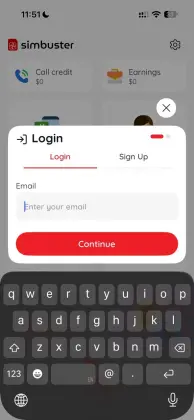
Open SimBuster after installation.If you are new to SimBuster, follow the on-screen steps to create your account. If you already have an account, sign in using your existing details.
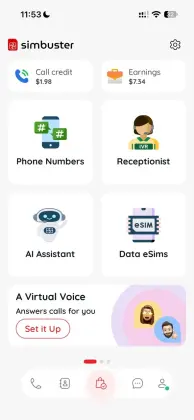
After signing in, you will arrive at the SimBuster home screen.
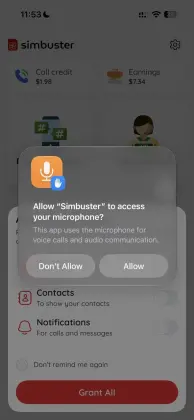
Allow microphone access
SimBuster needs access to your microphone when you make or answer app-based voice calls.When your phone asks for microphone permission, choose Allow.
If microphone access is blocked, calls may connect but the other person may not be able to hear you.
You can change this permission later in your phone’s settings.
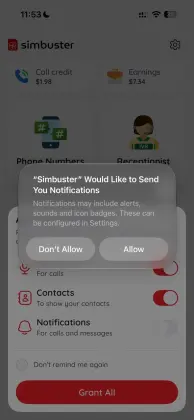
Allow notifications
Allow notifications so SimBuster can alert you about incoming calls, messages and important account activity.If notifications are disabled, you may miss an incoming call alert even though your SimBuster number is active.
Notification behaviour can also be affected by your phone’s silent, Focus, Do Not Disturb or battery settings.
Explore the SimBuster home screen
The home screen is the quickest way to reach the main SimBuster services.Depending on the services available to your account, you can access features such as:
- Phone Numbers
- Receptionist
- AI Assistant
- Data eSIMs
- Mobile Top-Up
- Calling
- SMS
- Call Credit
- Plans & Bundles
- Speech Credit
- Refer & Earn
- Rewards
You do not need to configure everything before using SimBuster. Start with the feature you need and add others later.
Get your first phone number
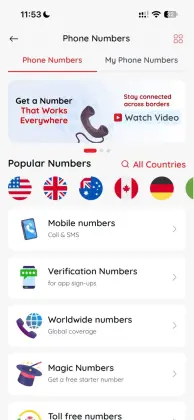
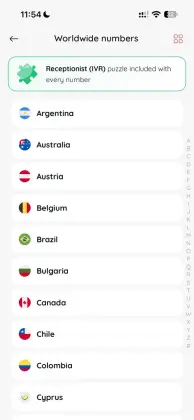
If you want a second phone number or business number, open Phone Numbers from the home screen.From there you can browse the phone numbers currently available to you.
Depending on the destination, SimBuster may offer different number types such as:
- Local
- National
- Mobile
- Toll-free
Select the country and number type you need and follow the purchase or activation steps shown in the app.
Some numbers have additional requirements or restrictions. These are shown during the ordering process where applicable.
SMS support also varies by number. Do not assume every virtual phone number can receive every type of SMS or verification code.
Continue with the full guide: How to get a SimBuster phone number
Make your first call
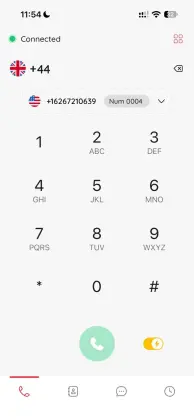
To make an outgoing call, open the SimBuster dialler.Enter the full telephone number you want to call, including the correct country code when required.
Before placing a paid call, make sure you have sufficient Call Credit or an applicable calling plan.
Tap the call button to start the call.
During a call you can use the available call controls such as the keypad, microphone mute and speaker.
Receive an incoming call
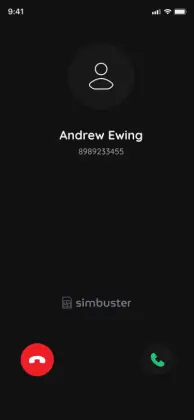
When somebody calls an active SimBuster number, the app can alert you to the incoming call.Answer the call using the incoming-call controls on your device.
For reliable incoming call alerts:
- keep SimBuster installed and signed in;
- allow notifications;
- make sure your device has an internet connection;
- check Focus, Do Not Disturb and notification settings if calls are not alerting you.
If your number uses Receptionist, forwarding, voicemail or AI Assistant, the incoming call may follow the routing you configured instead of ringing directly in the app.
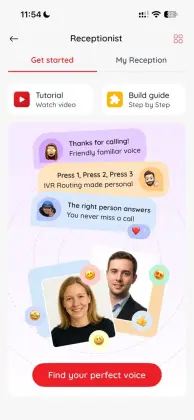
Set up Receptionist
Receptionist gives your SimBuster number a structured way to handle incoming calls.You can create greetings, menu choices and call routes directly from the app.
A simple setup might say:
“Welcome. Press 1 for Sales, press 2 for Support.”
Each option can then send the caller to the destination you choose.
Receptionist is useful for businesses, freelancers or anyone who wants incoming calls handled differently depending on why somebody is calling.
Try AI Assistant
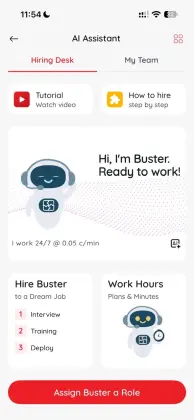
AI Assistant can handle incoming conversations when you want calls answered automatically.You can configure what the Assistant should do, give it information to work from and choose how calls reach it.
For example, an AI Assistant can be configured to answer common questions, handle enquiries or act as a first point of contact when you cannot answer personally.
Get a travel eSIM
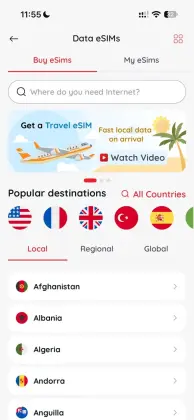
If your phone supports eSIM, you can browse available data plans in SimBuster for supported countries and regions.Choose your destination and plan, complete the purchase and follow the installation instructions for your device.
An eSIM is separate from your SimBuster phone number. It provides mobile data; it does not replace the phone-number service itself.
Send a mobile top-up
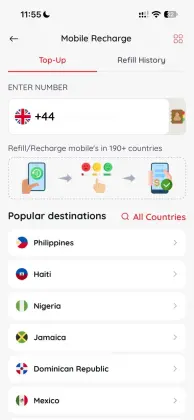
Mobile Top-Up lets you recharge supported prepaid mobile numbers.Select Mobile Top-Up, choose the destination, enter the mobile number and follow the available operator and product options.
Always check the mobile number carefully before completing a top-up.
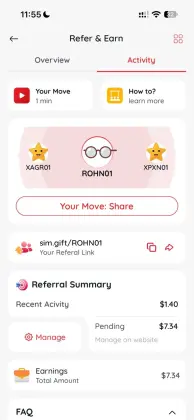
Refer & Earn
Open Refer & Earn to find your referral details and see the referral and commission options available to your account.You can share your referral link or code with eligible new users and track qualifying activity from the app.
Terms, eligibility and withdrawal requirements may apply.
Where to go next
Once SimBuster is installed, you can set it up around what you actually need.Having a problem?
If something is not working as expected, start with Troubleshooting. TroubleshootingCommon problems include:
- Incoming call not ringing
- Can’t make a call
- Can’t receive a call
- No audio during a call
- SMS not received
- Payment failed
- eSIM has no internet
- Mobile top-up not received
You can also search the Help Center using the search box at the top of any Help page.